When you Save your document or reopen an existing document, you have the option to Share Quicklink.
The Quicklink QR code and short URL lead to an interactive version of your document. Documents accessed via Quicklink can be attempted online with the option to check marks instantly and view mark schemes.
NB
- No login is required to view a Quicklink. Student data is not required and no results are recorded.
- In accordance with our terms and conditions, all Exampro documents must be shared securely (not visible to the general public), for example on your school's learning platform or via email.
- If you wish to assign your document to specific classes/groups, set time constraints, view students' answers or gain reports, you should use the Set and manage assignment option, which requires student data.
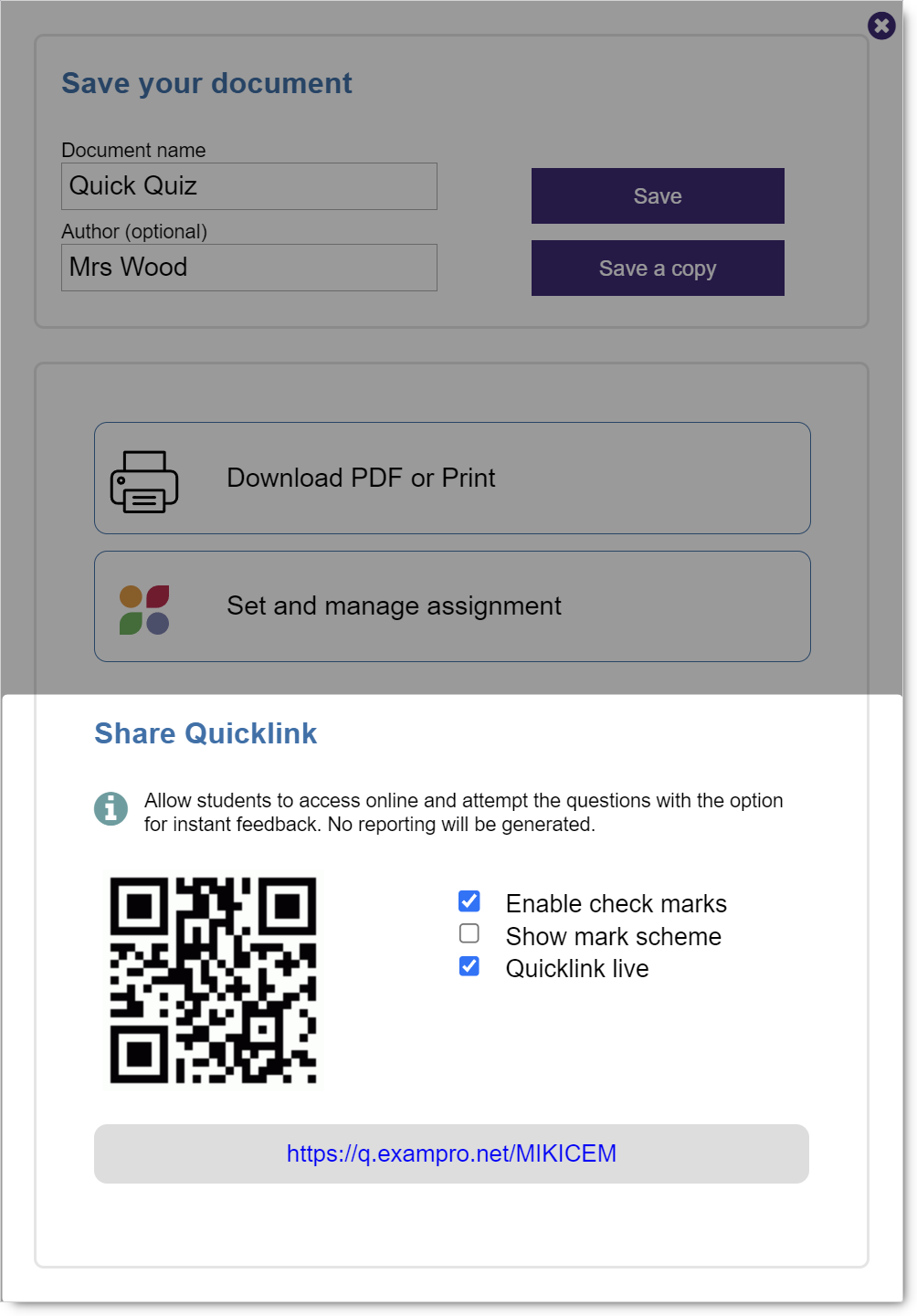
Use the check boxes next to the QR code to choose which functionality to enable.
Enable check marks: When ticked, students will be able to view the marks that they achieve. Non-automarkable questions will show as '-'
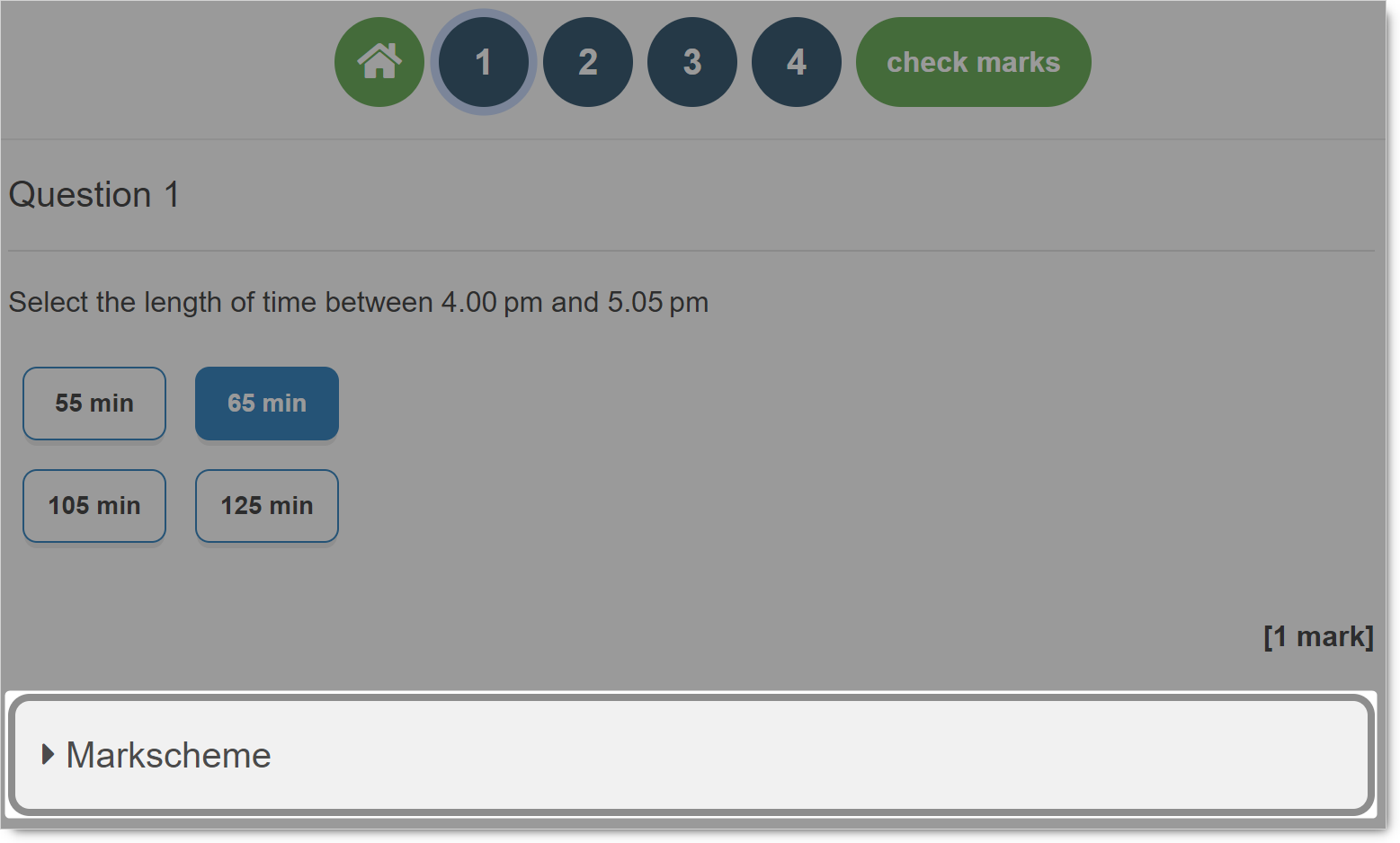
Show mark scheme: When ticked, students will be able to view the mark scheme associated with each question.
Quicklink live: When ticked, the Quicklink will be accessible via the QR code and URL. Untick this box to close the Quicklink and prevent access.
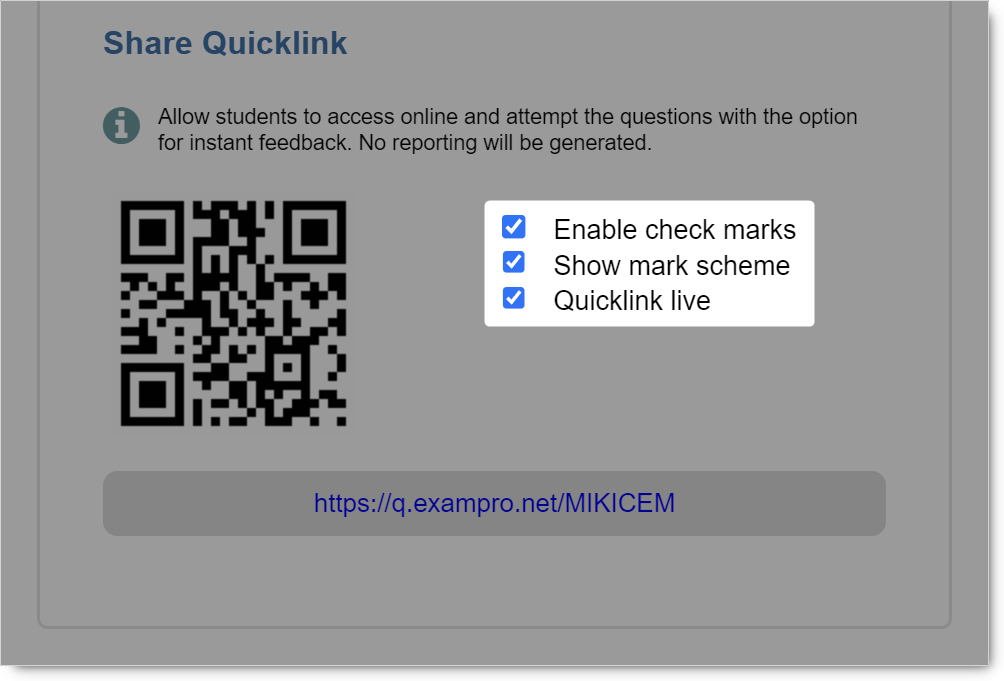
The changes are immediate and ticking or unticking saves automatically.
Click the QR code to open it in a full-screen view so it can be scanned easily by mobile devices.
Click the URL to see what your students will see.
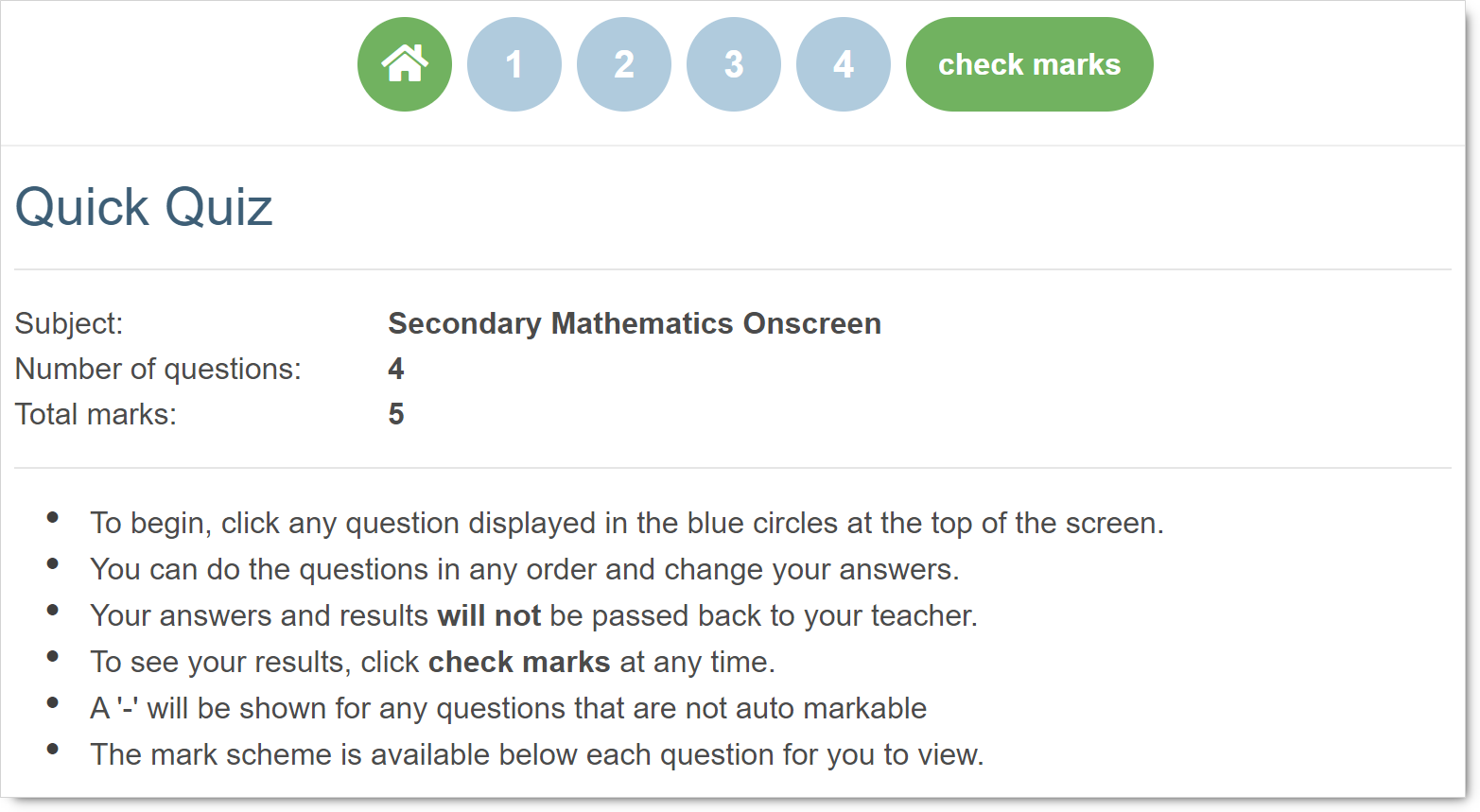
Click Markscheme, at the bottom of each question screen, to open / close the mark scheme (if enabled).
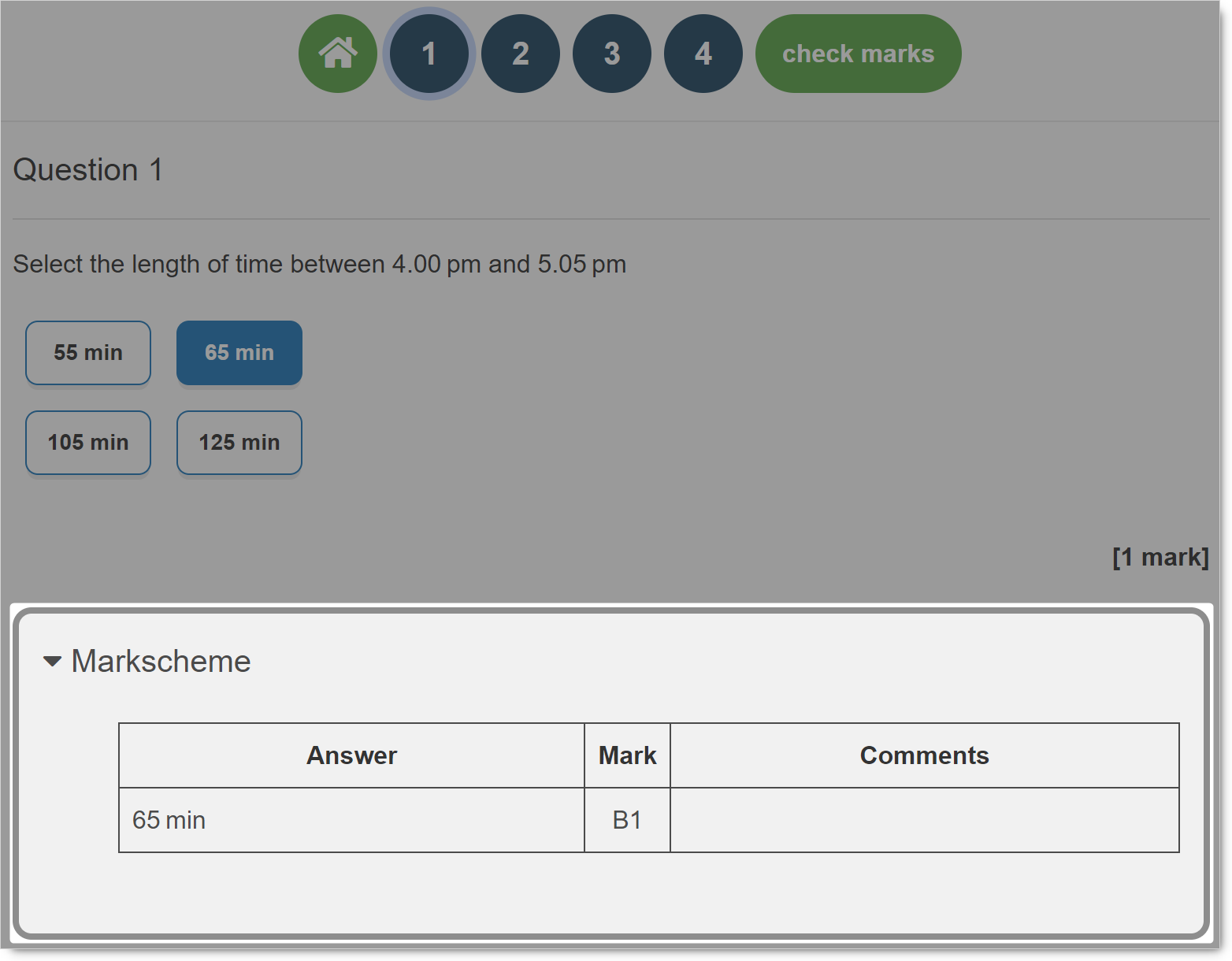
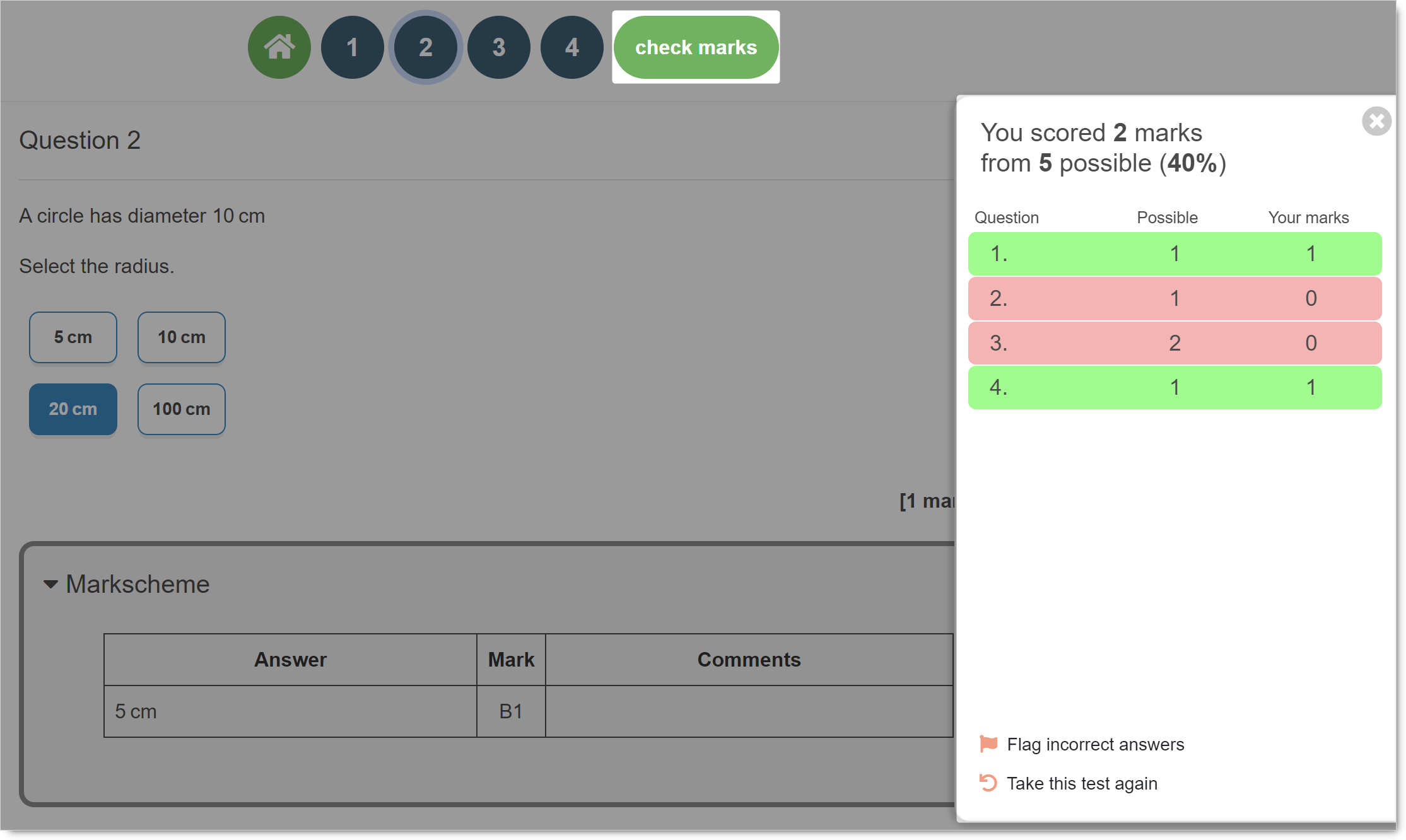
Click check marks to review the score achieved (if enabled).
Click  to close. Close and reopen at any time to refresh the scores.
Top tip
We recommend using automarked questions for documents that are to be distributed to students via Quicklink to make the most of the check marks functionality. You can select automarkable questions in the search tool.