Multi factor authentication (MFA) adds an extra layer of security to the standard user name and password, making it significantly harder of unauthorised individuals to access an account.
When configuring MFA for users we strongly recommend notifying them via other channels (e.g. email) beforehand so that they are not surprised by this new security requirement.
Once successfully logged in with MFA, the same device will be 'trusted' when used by the same account on the same network for 14 days without requiring re-authentication. After 14 days since logging on with MFA on the same device on the same network, the user will be prompted to use MFA to log in once more.
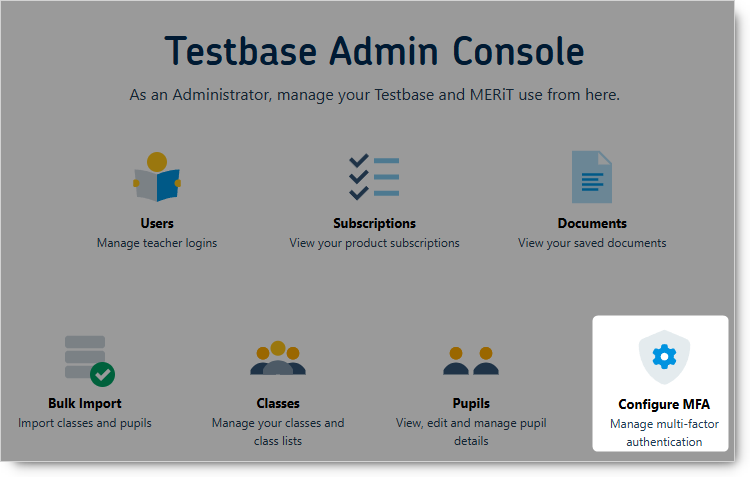
To configure MFA for users at your school, log in to Testbase with an account that has administrator privileges and click the Admin Console button on the Gatekeeper.

This will open the Admin Console. Click the Configure MFA button to open the MFA configuration screen.
The MFA configuration screen allows you to select from a number of options.
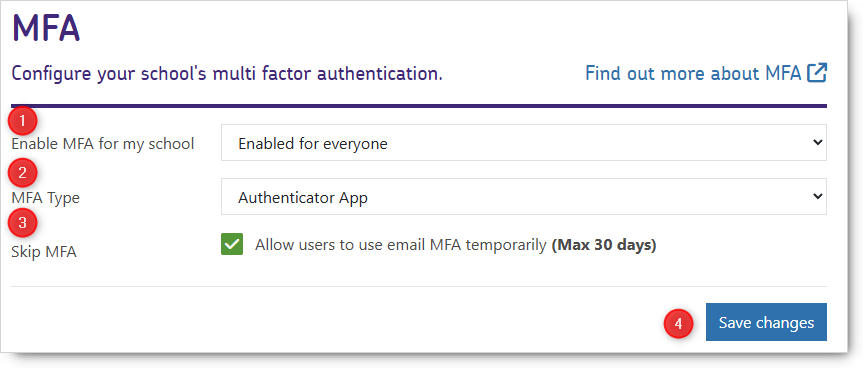
1) Enable MFA for my school:
There are three options available in this setting.
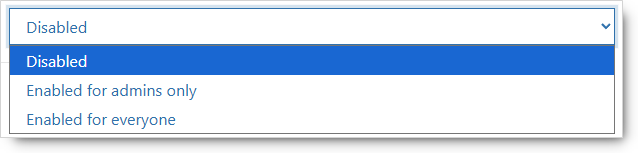
Disabled - This is the default setting. MFA is not required by any users.
Enabled for admins only - Only users with Admin privileges are required to use MFA to log in.
Enabled for everyone - All users are required to use MFA to login.
Note: It is possible to give individual users different MFA requirements from the majority, see below for details.
2) MFA Type:
There are two options available in this setting.

Authenticator App - Recommended. This setting will require a user to configure an authentication app on their smart phone or similar device. We recommend either Google Authenticator or Microsoft authenticator, though other alternatives are available. The user will need to open the authenticator app on their device and scan the QR code on the login page to configure it. Thereafter, when challenged on login, the user will need to refer to the app on their device and enter the code shown there in order to complete logging into Testbase.
E-mail - This setting will require that the user enters a code that has been emailed to the address associated with their account in order to complete logging into Testbase. Though less secure than the Authenticator app this option may prove more accessible for less technical users.
3) Skip MFA - This check box only appears when Authenticator App is selected. By checking this check box this will allow users thirty days grace before they have to configure an MFA app to log in, allowing them instead to use the email method for that period of time. This may be useful to avoid situations where teachers are rushing to prepare materials directly before a lesson and may not have time to go through the app configuration steps without impacting their teaching. When the 30 days are up however, they will be obliged to configure and use an MFA app in order to log in.
4) Save changes - Once you have selected the appropriate settings for your school, clicking this button will enable these settings for the selected users.
Note that if your school already has MFA set up, you will see the following message after making any changes to the school settings but prior to clicking Save changes.

By checking the box and then clicking Save changes you will overwrite any existing user configurations with the new settings. Leaving the box unchecked prior to clicking Save changes will leave any existing user configurations as they are. To avoid giving your users a surprise, we recommend that you notify them prior to making any such changes.
Changing individual user's settings
It is possible to give individual users settings that differ from the school default.
In the Users section of the Admin console, click the edit user icon next to the user in question.

You will then see in addition to that users other settings an MFA section.
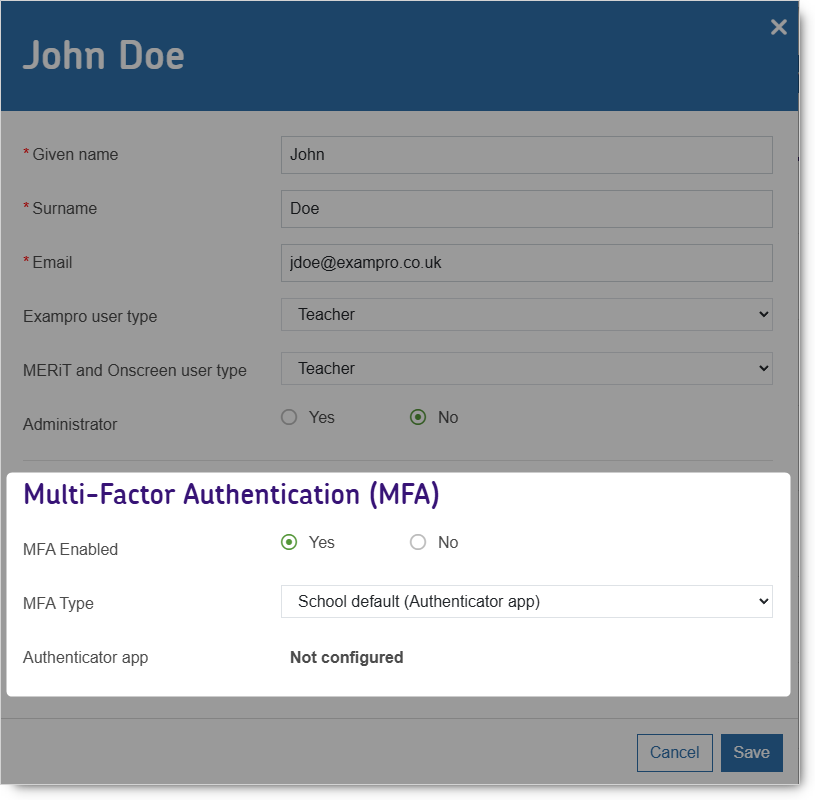
Here you have the same options that are described in 2) above that can be used to configure settings for this specific user that can be different from the school default.
Note also that if that user is set to use an authenticator app, this screen will show whether their app has been configured and is ready for use or not.