Multi factor authentication (MFA) adds an extra layer of security to the standard user name and password, making it significantly harder for unauthorised individuals to access an account. Testbase supports two types of MFA described below.
Important: Your Testbase administrator manages which, if any, MFA will be applied to your account.
MFA by email
The first, less secure, option requires you to enter a code that you will receive by email when logging in. After entering your username (email address) and password into the login screen you will see the following dialogue box.
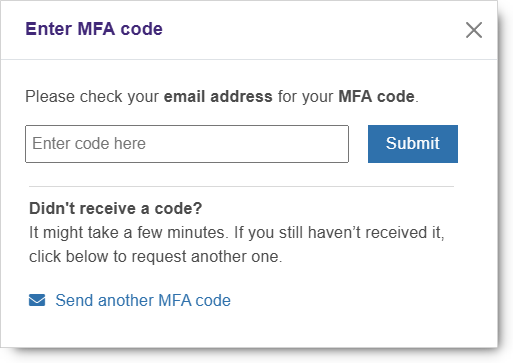
As per the instructions, you will need to check your email inbox for the account associated with your Testbase login. You should find an email with the six digit numeric code that you will need to enter into the Enter code here box before clicking Submit to complete your login.
If you don't see the email in your inbox within five minutes, please check your spam and bin folders.
MFA by authentication app
The more secure and recommended MFA configuration is to use an authentication app on your smartphone or similar device. If your account has been configured to use this method, after entering your username (email address) and password into the login screen you will see the following dialogue box.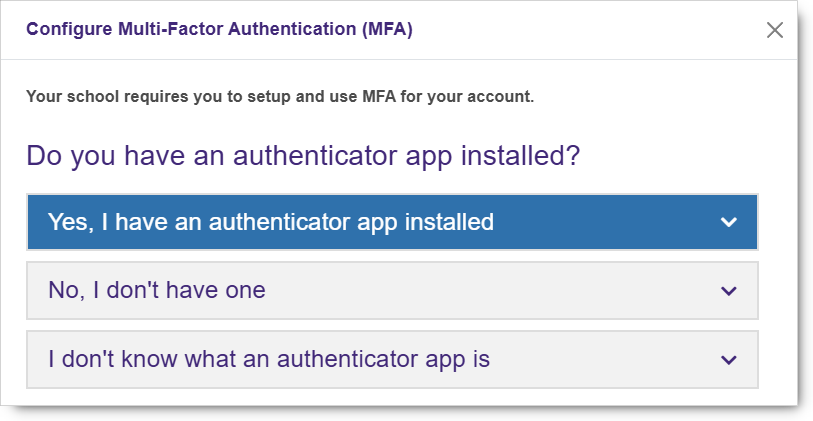 Expand the appropriate dropdown menu depending on whether you have or do not have an authentication app installed.
Note: The third option will provide you with a link back to this help article.
Getting an authenticator app
If you do not have an authenticator app installed on your device, clicking the No, I don't have one menu should display the following screen with buttons to download the two authenticator apps we recommend (Google Authenticator or Microsoft authenticator) from the Google Play Store for Android devices or the Apple App Store for Apple devices.
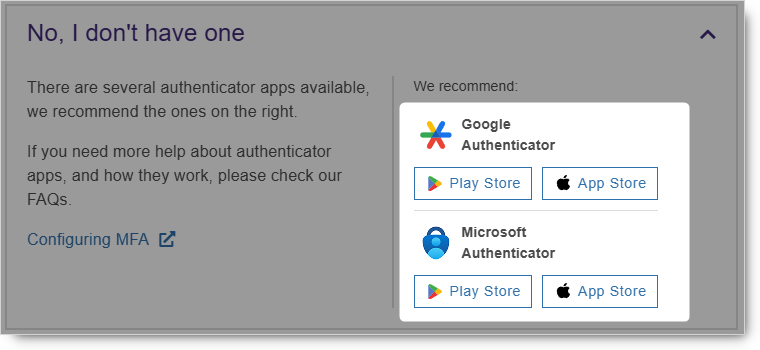 Note: Other alternative authenticator apps are available.
Configuring your authenticator app
If/once you have your authenticator app installed, click the Yes, I have an authenticator app installed menu and you should see a screen with a QR code and a box for you to enter a code in.
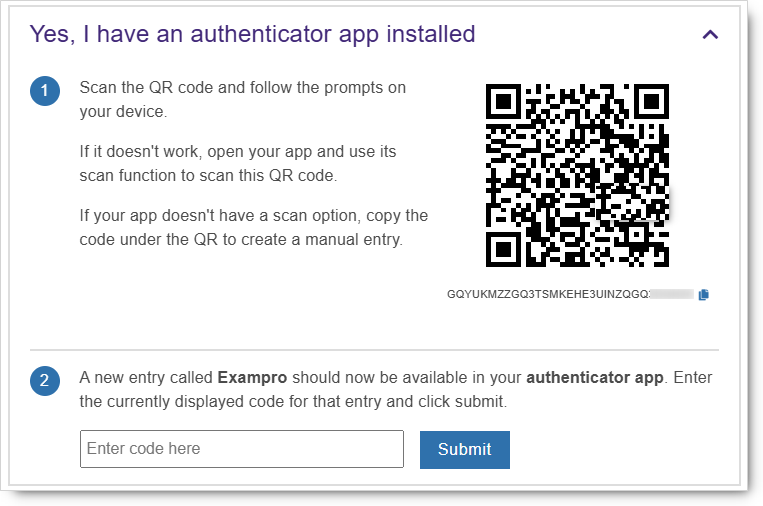
Open your authenticator app and scan the displayed QR code (or enter the code displayed underneath the QR code). Your app will create an entry called Testbase and display a six digit number which refreshes every 30 seconds. Enter the displayed code in the Enter code here box and click Submit to complete logging in. You will need to enter a new code each time you log in.
Note: Your Testbase Administrator may have enabled a setting that allows you 30 days from the point MFA was enabled on your account to skip using the MFA app and to use MFA by email as described above instead. This is designed to allow you to avoid having to configure your MFA app immediately in case you are in a rush. However, we strongly recommend that you start using MFA as soon as possible after configured by your Testbase Admin. The skip option appears at the bottom of the Configure Multi-Factor Authentication (MFA) screen .
