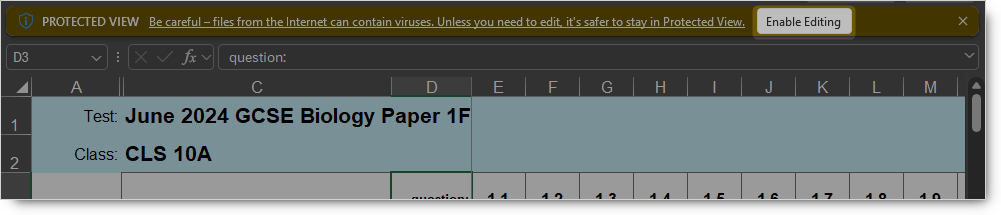
Note: Your spreadsheet application (e.g. Excel) may require you to Enable Editing by clicking the appropriate button after opening the spreadsheet before you will be able to enter any marks.
1. The spreadsheet will display your students in Column B and the questions in Row 3. The available marks are in Row 4.
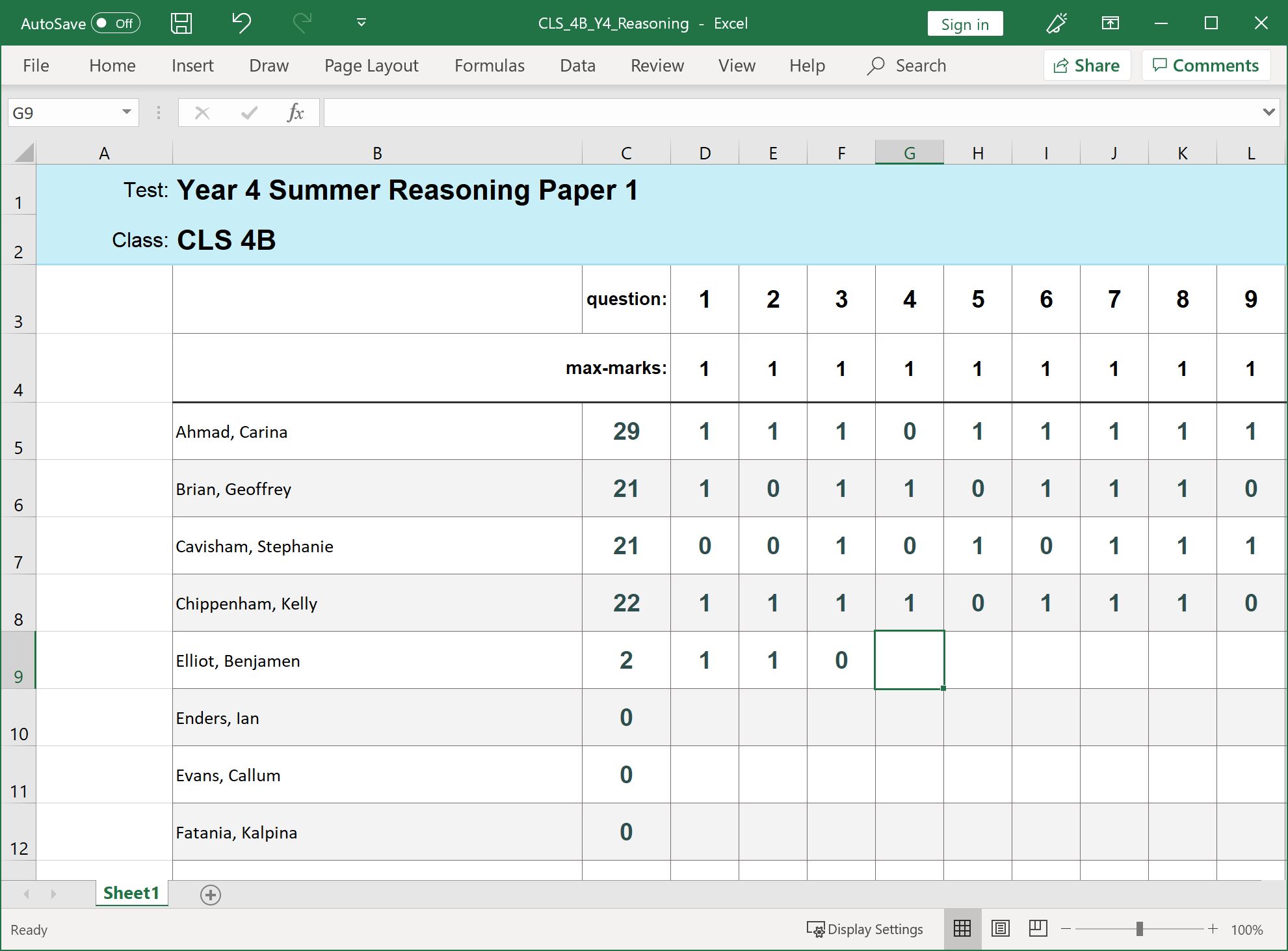
2. Fill in the marks for each question and each student. Use the arrow keys to move quickly between cells.
Note: The distinction between questions that were not attempted and those where the response gained no marks is very important.
- If a student didn’t sit the test then leave mark entry empty for all questions
- If a student did sit the test, but didn’t give any answer for a question then enter 'NA' or 'na' for that question
- If a student did attempt a question but didn’t achieve any marks, then enter ‘0’ (zero) for that question
A student should only have all '0' (zero) entries for all questions if they did the test but didn't achieve any marks on any questions.
3. If you enter more marks than the total allowed for the question, you get an error message.

Click Retry or Cancel to enter the correct marks.
4. The student's running score will display beside their name (Column C)
5. If your spreadsheet application (e.g. Excel) does not autosave, make sure to save the spreadsheet regularly and when you have completed entering marks to avoid losing your work.